




















Are you dealing with a Sales Order/Purchase Order that can’t be deleted in your Microsoft Dynamics 365 Business Central (NAV|D365 BC) system?
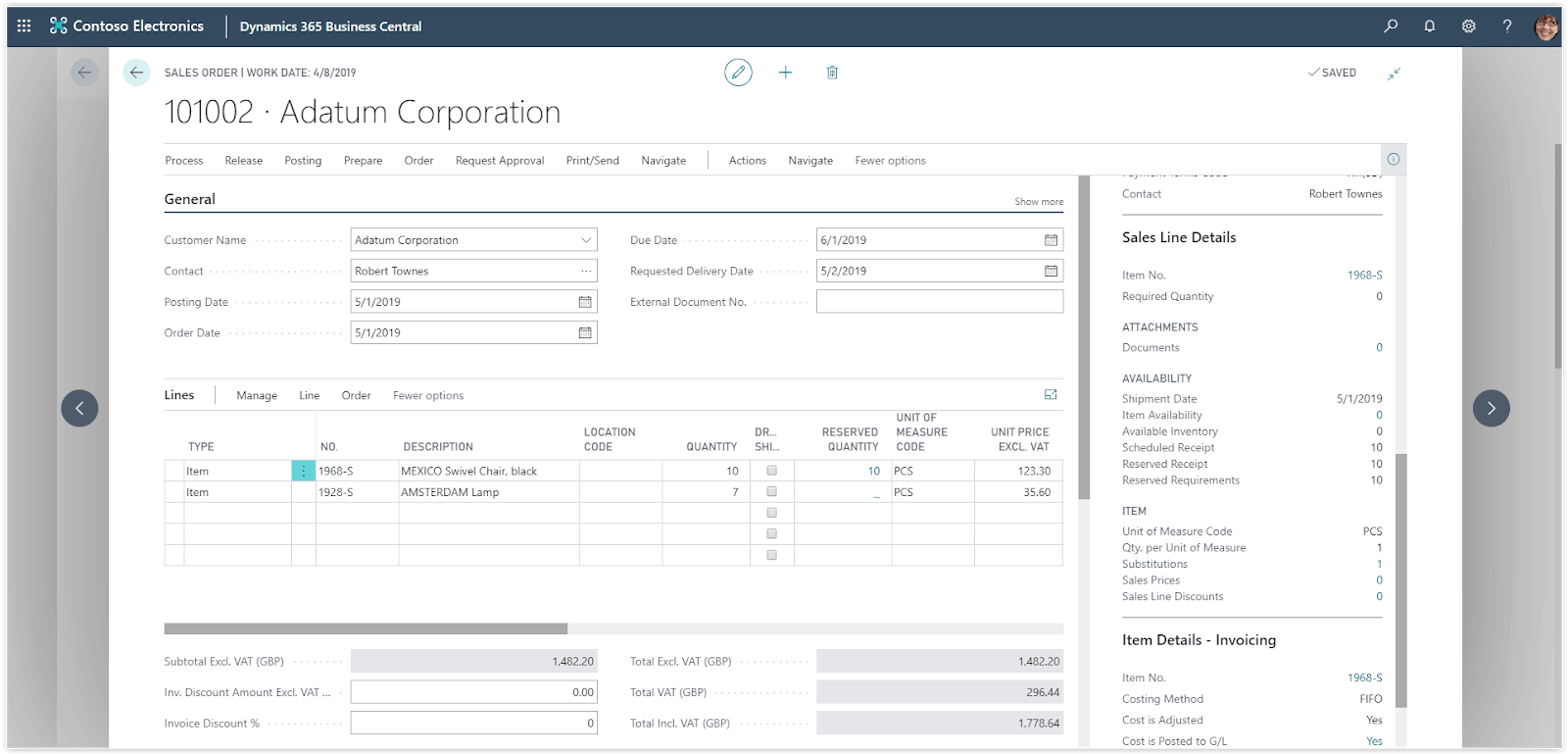
It can be incredibly frustrating when orders or purchases don’t delete after they're posted into NAV|D365BC, and it’s essential to get to the bottom of the issue quickly.
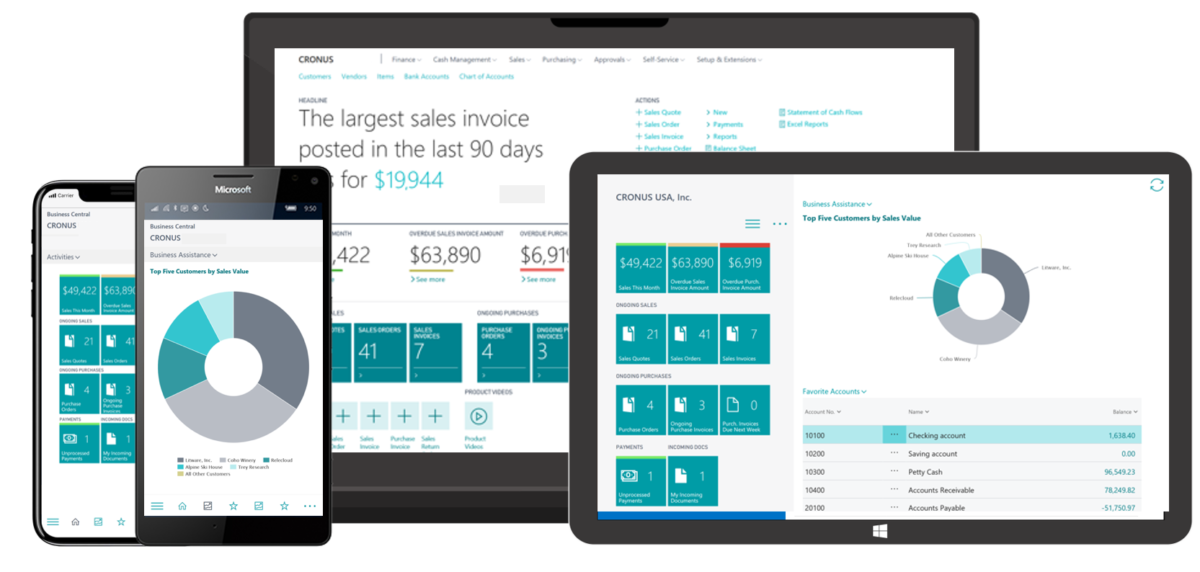
Microsoft Dynamics 365 can be a powerful tool that streamlines your operations and makes your process efficient. But if your Sales Order or Purchase Orders are not being deleted after they have been posted in NAV | D365 BC, then it’s time to take further action.
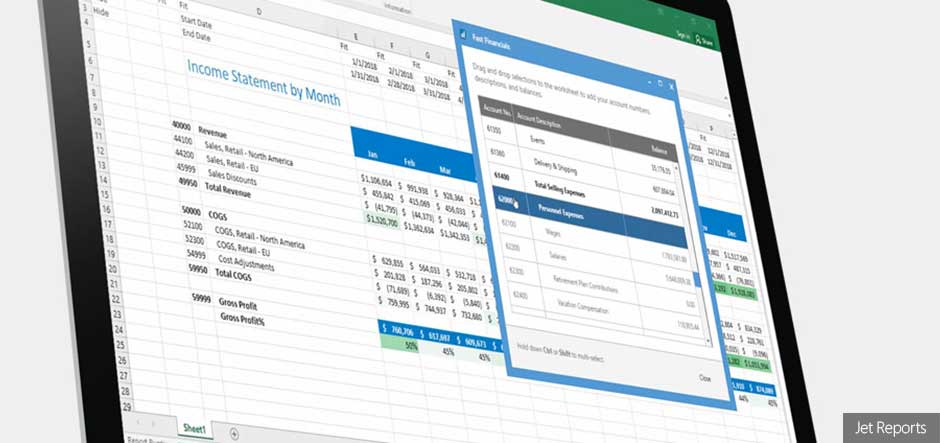
The Sales Order/Purchase Order feature is a critical part of the ERP system and must function without errors or delays. Microsoft Dynamics 365 and the NAV | D365 BC offer a powerful solution that can help you quickly delete sales or purchase orders, giving you back control of your business. With MS Dynamics 365- Sales Order/Purchase Order, deleting orders can now be done quickly and easily, meaning no more wasted time or manpower for your business!
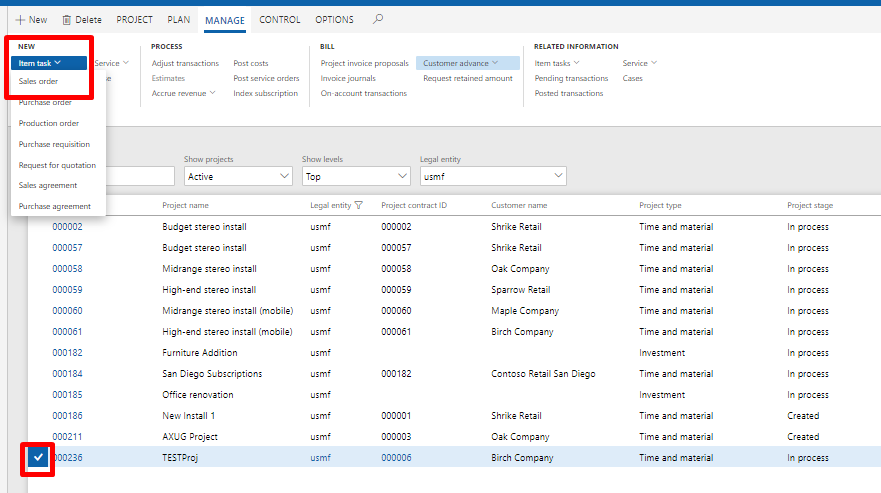
Reasons
Even after posting in NAV|D365 BC, it is possible that Sales Order/Purchase Order will not be deleted. Some of the reasons are:
1. The order is connected to associated documents
If the associated documents of a Sales Order/Purchase Order are not deleted even after they are posted in NAV|D365 BC, this can be due to an incorrect setting in the inventory module. For example, if the “Keep Documents Alive After Posting” option has been enabled for those documents, then it can cause them to remain visible in NAV|D365 BC even after they have been posted. To fix this issue and ensure that all documents are properly deleted after posting, this setting must be disabled.
2. There is an unsettled invoice connected to the order
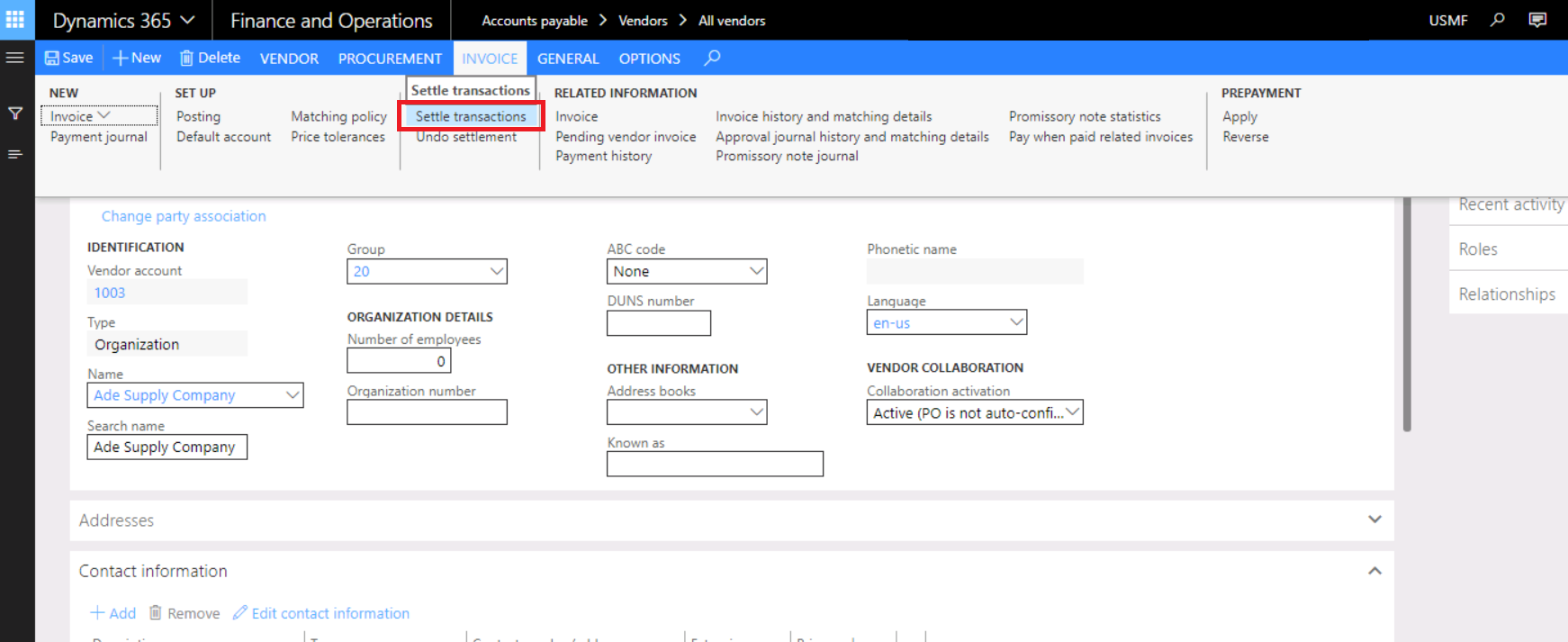
Unfortunately, this is a common problem with Sales Orders/Purchase Orders (SOPOs) in Dynamics NAV or D365 Business Central. The reason for this behavior is that it still exists a link between the SOPO and the unsettled invoice. To resolve the issue, you need to delete the unsettled invoice first, so there is no longer an associated link. Once that has occurred, the SOPO can be deleted without further issues.
3. Goods receipt/shipment still hasn't been posted
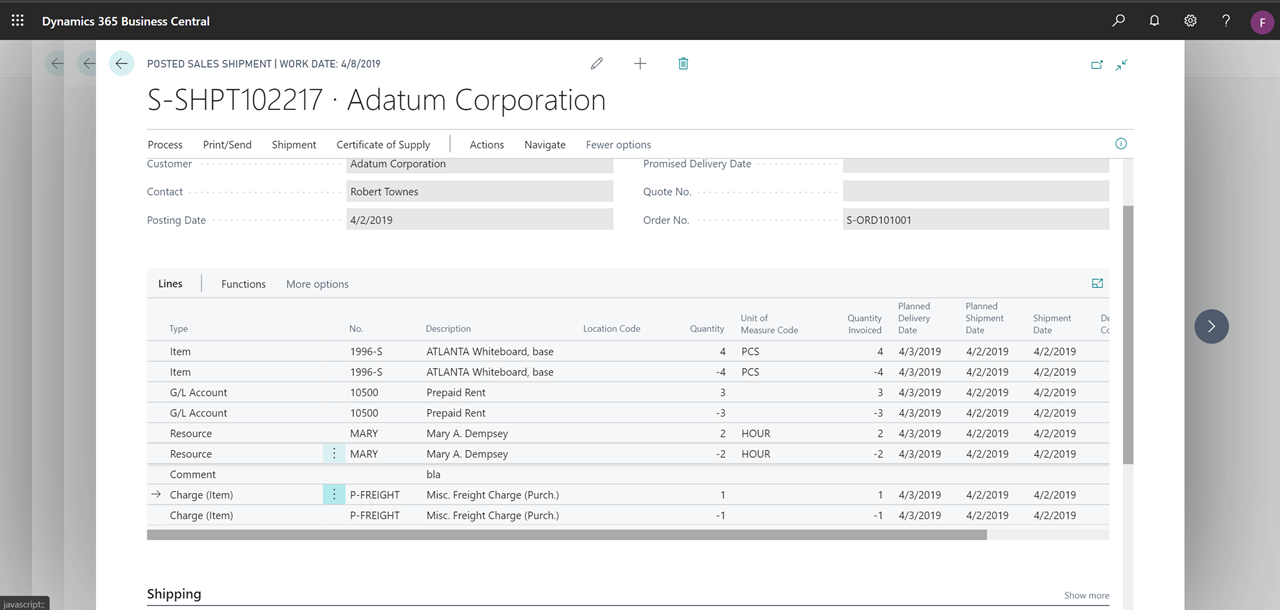
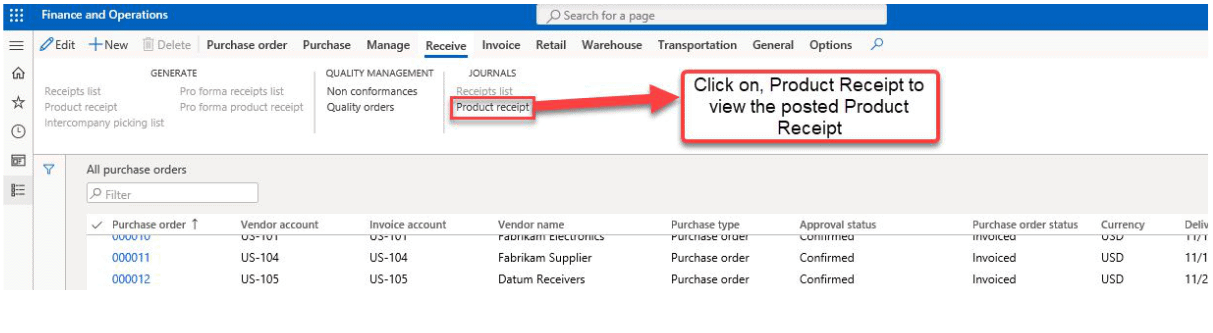
It is possible that the Goods Receipt/Shipment has not been posted or the Sales Order/Purchase Order is not getting deleted in NAV|D365 BC because of errors in the system. For instance, there could be issues with your master data, inventory settings, or user permissions. Problems with storage diagrams and different currencies could also be causing this problem. To successfully troubleshoot this problem, it is essential to identify the root cause so that you can resolve the issue quickly and efficiently.
4. Errors in data entry causing issues with the posting process
Data entry errors in the Sales Order/Purchase Order posting process in NAV|D365 BC can be difficult to resolve, as the posted data may not be easy to delete. The easiest way to address this issue is by double-checking all published data and confirming that all entries are accurate before posting. Additionally, depending on the significant error, it may require resetting fields or manual corrections to ensure the entries are accurately matched up with order information. Further, backing up all orders before posting them can help if an issue arises during the post process.
5. The Orders might still have unfulfilled lines or other commitments
The Orders might still have unfulfilled lines or other commitments preventing the Sales Order/Purchase Order from being deleted in NAV|D365 BC. This could be due to orders that have been partially shipped and quantities on open lines that have never been invoiced. Additionally, Open Substitutions with the quantity remaining on the sales order could be causing this type of issue. It is important to ensure all obligations associated with an order have been fulfilled before trying to delete it.
6. Documents are in a locked period, prohibiting deletion
Documents being in a locked period prohibits deletion of Sales Order/Purchase Order because they cannot be modified or deleted in the system once posted. This safety mechanism is designed to prevent any misuse or errors occurring within the system. The only way to delete these orders is by changing the date of the locked period and then posting the documents again. However, this can be done only when all related purchase orders and sales order documents have been adjusted or closed in the same accounting period with no outstanding balances remaining.
Imagine how efficient your day-to-day operations would become if this issue could be quickly resolved without extensive user intervention or additional software.
Regardless of your technical ability level- even if you’re a beginner- this convenient solution will help save time and effort managing these everyday tasks. You deserve a reliable, Efficient solution that eliminates any stress when deleting orders in your MS Dynamics system.
Our team of experienced professionals can provide the answer. We specialize in MS Dynamics 365 and have the knowledge and expertise to resolve any post-posting issues.
That's why we are here to provide you with the solution- our MS Dynamics 365- Sales Order/Purchase Order Delete Tool. This tool makes it easy to delete posted orders in NAV|D365 BC with just a few clicks of the mouse, saving you time and energy every day!
Contact us today for assistance with MS Dynamics 365 Sales Order/Purchase Order problems. We'll diagnose and fix the issue quickly, so you can keep running your business smoothly.

